
Publish a local static site
This page walks through publishing a static website with Fast-Https on both Windows and Linux.
1 Get the software
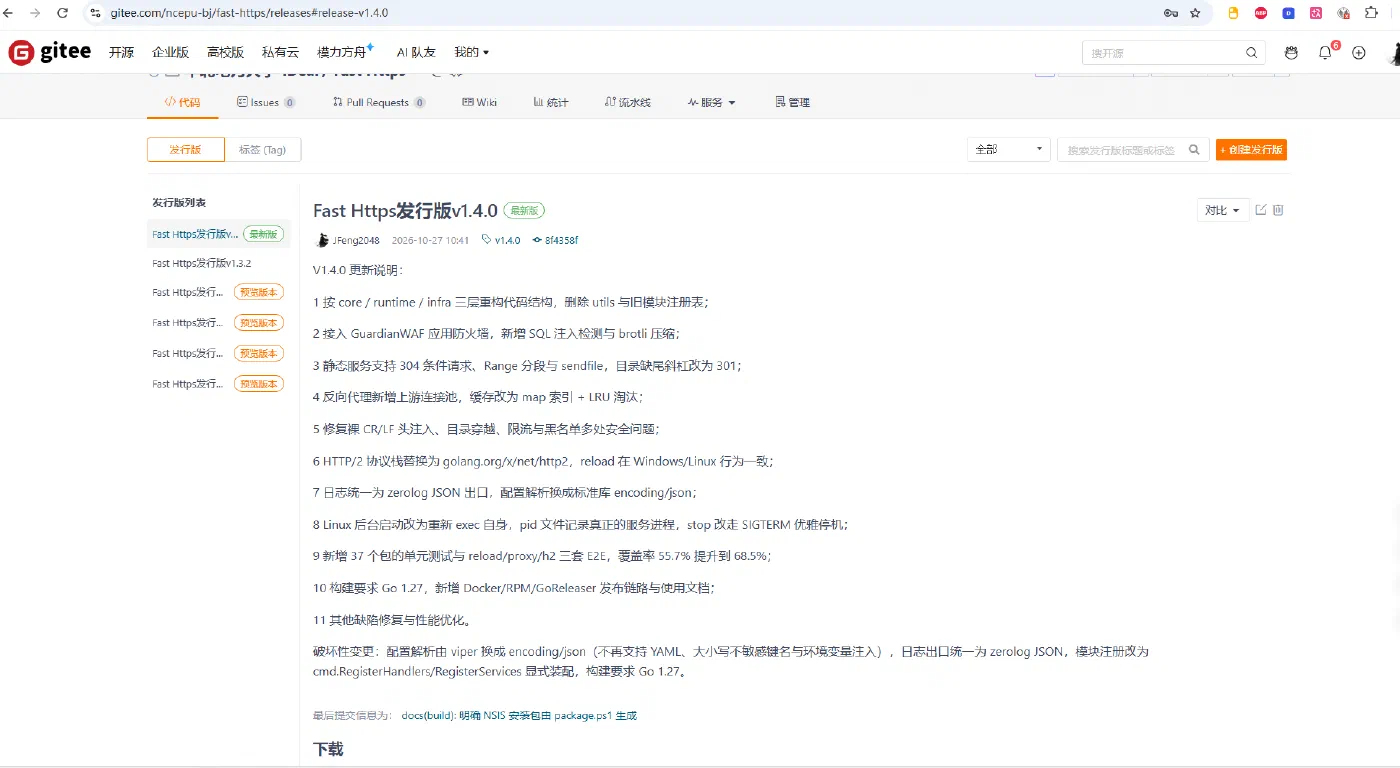
Open the release page and pick the build for your platform:
https://gitee.com/ncepu-bj/fast-https/releases
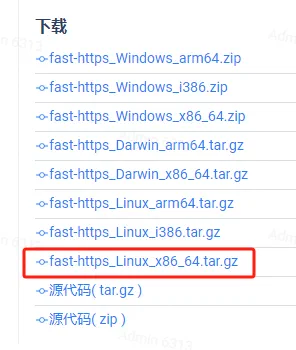
- Windows:
fast-https_Windows_x86_64.zipis enough in most cases; - Linux: match the CPU architecture; for a regular x86 server use
fast-https_Linux_x86_64.tar.gz.
2 Install on Windows
Unpack the archive
Unzip the downloaded package:
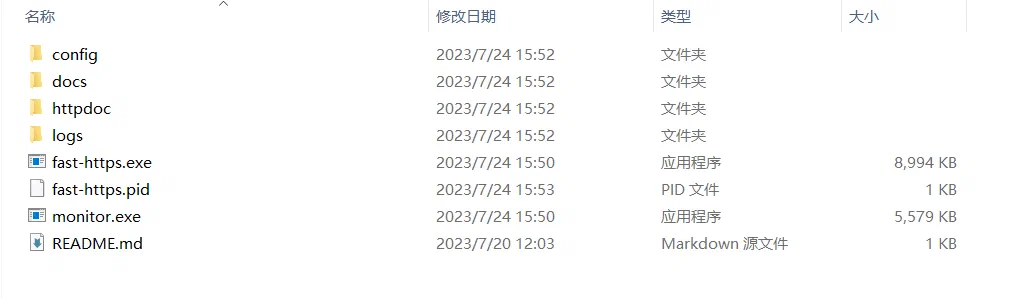
Copy the unpacked folder somewhere convenient — below we assume D:\fast-https_Windows_x86_64.
Upload the site files
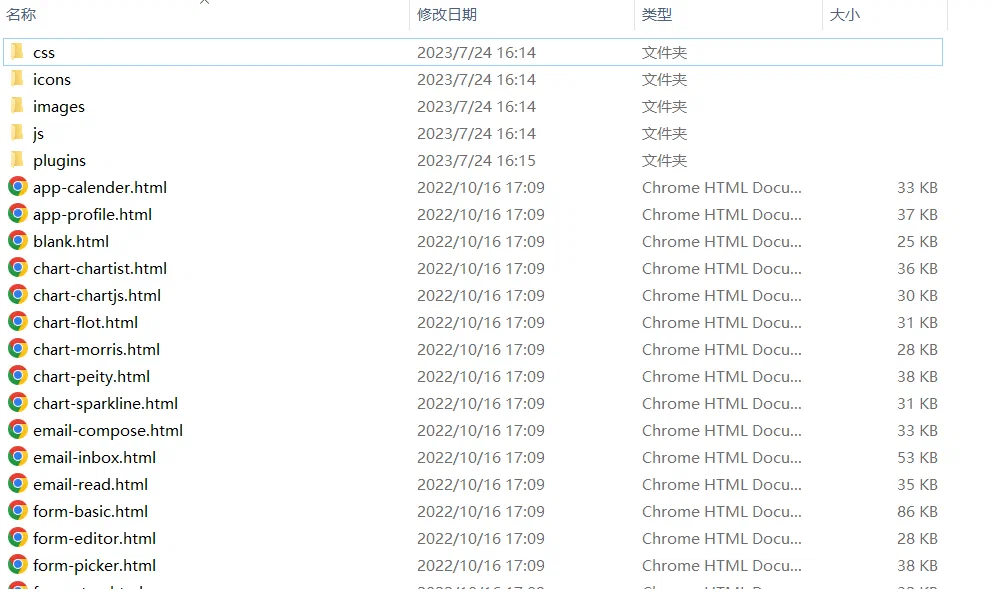
Create a folder per site under D:\fast-https_Windows_x86_64\httpdoc, named after the domain, e.g. www.myweb.com, and copy your static files into D:\fast-https_Windows_x86_64\httpdoc\www.myweb.com:
Edit the configuration file
Open the main configuration file fast-https.json in D:\fast-https_Windows_x86_64\config:
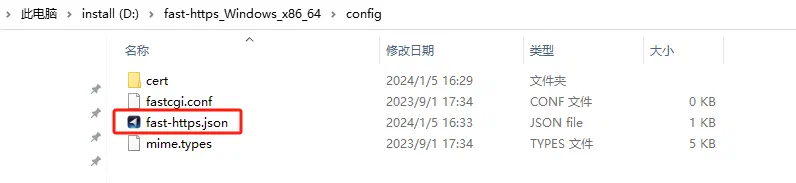
Edit it as follows:
{
  "log_root": "./logs",
  "pid": "./fast-https.pid",
  "http": {
    "include": "mime.types",
    "server": [
      {
        "listen": 8080,
        "server_name": "localhost",
        "location": [
          {
            "url": "/",
            "type": "local",
            "root": "./httpdoc/www.myweb.com",
            "index": ["index.html", "index.htm"]
          }
        ]
      },
      {
        "listen": "443 ssl",
        "server_name": "localhost",
        "ssl_certificate": "config/cert/localhost.pem",
        "ssl_certificate_key": "config/cert/localhost-key.pem",
        "location": [
          {
            "url": "/",
            "type": "local",
            "root": "./httpdoc/www.myweb.com",
            "index": ["index.html", "index.htm"]
          }
        ]
      }
    ]
  }
}
There are two site blocks: a plain listener on 8080 and an encrypted listener on 443, both serving the same directory.
Start the monitor program
Find and double click monitor.exe in D:\fast-https_Windows_x86_64:
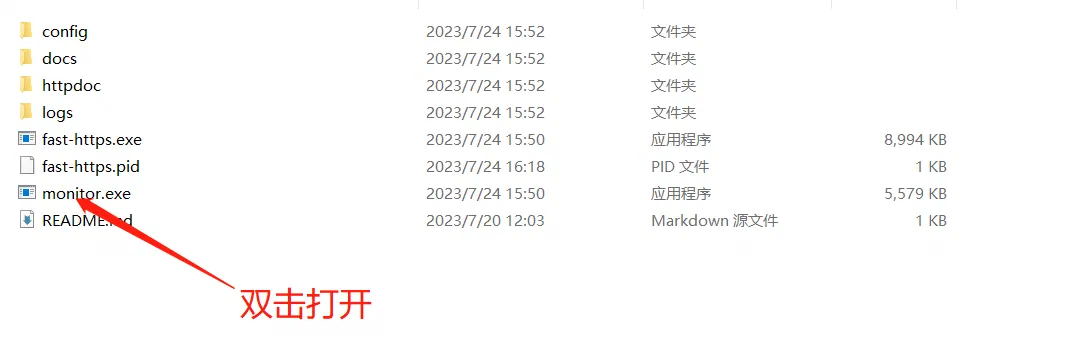
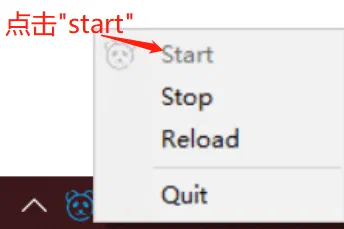
Then click the tray icon in the notification area to start the service:
Open http://localhost:8080 in a browser and the site appears:

Access the site by domain
Set server_name to your domain:
"server_name": "www.myweb.com"
Then add a local entry to your hosts file (usually C:\Windows\System32\drivers\etc\hosts):
127.0.0.1 www.myweb.com
After saving, the site is reachable at http://www.myweb.com:8080.
3 Install on Linux
3.1 Upload the site files
Create /usr/local/fast-https/httpdoc/www.myweb.com and copy your static files into it:
3.2 Edit the configuration file
$ vi /usr/local/fast-https/config/fast-https.json
The content is identical to the Windows example above; just make sure root points to ./httpdoc/www.myweb.com.
3.3 Start and test
$ ./fast-https
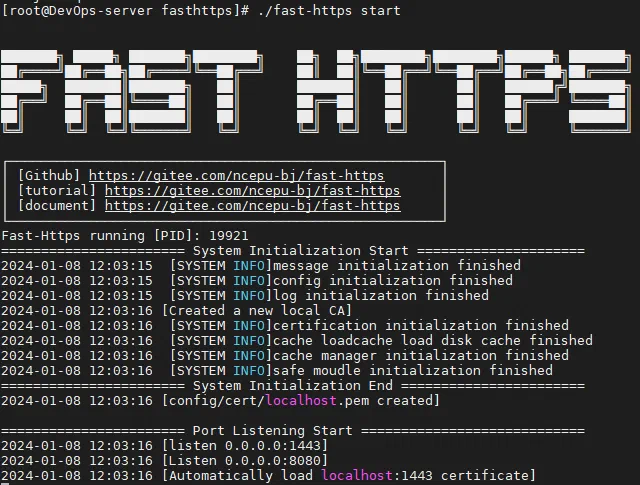
Started this way the process ends with the terminal session. For production, run it in the background:
$ nohup ./fast-https &
Open http://ip:8080/index.html and the deployed site is served:

server_name to the server IP or a resolved domain. If ports 80/443 are already taken, verify with another port first.